
🚀 Getting Started with OnTime
🕒 Service Cue Timing & Management System
https://time.elshaddai.app/timer
LAN Access: http://192.168.50.80:4001/timer
📘 Official Docs: docs.getontime.no/ontime
1. 🖱️ Open OnTime & Enter Editor Mode
Abrir OnTime y Entrar en el Modo de Edición
EN:
-
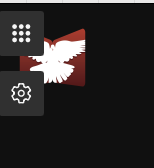
Hover over the top-left corner of the screen.
-
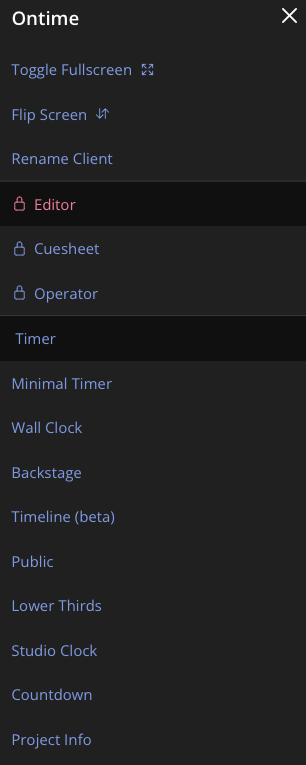
Click the gray square with 3x3 white dots.
-
Select Editor.
-
Enter the PIN code to access the editor.
Don't know the code? Ask Jahaziel, Jessy or Zuriel.
ES:
-
Visita: https://time.elshaddai.app/timer
-
Mueve el mouse a la esquina superior izquierda.
-
Haz clic en el cuadro gris con 3x3 puntos blancos.
-
Selecciona Editor.
-
Ingresa el código PIN para acceder al editor.
¿No sabes el código? Pregunta a Jahaziel, Jessy o Zuriel.
2. ▶️ Start the Timer
Iniciar el Temporizador
EN:
-
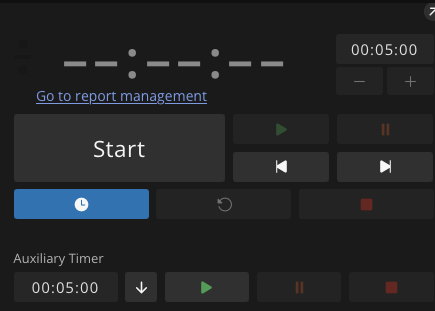
Once inside the Editor, click the gray "Start" button in the top-left.
-
The timer will begin running for the service.
ES:
-
Una vez dentro del Editor, haz clic en el botón gris "Start" en la parte superior izquierda.
-
El temporizador comenzará para el servicio.
3. ⏱️ Cue Color System
Sistema de Colores del Tiempo
| Color | Meaning (EN) | Significado (ES) |
|---|---|---|
| White | Active / In Progress | Activo / En progreso |
| Orange | Warning – Time ending soon | Advertencia – El tiempo está por acabar |
| Red | Danger – Ending immediately | Peligro – Final inminente |
| Negative | Cue is over time | El tiempo de la sección fue excedido |
4. ⏭️ Moving Between Cues
Moverse entre los Cues
EN:
-
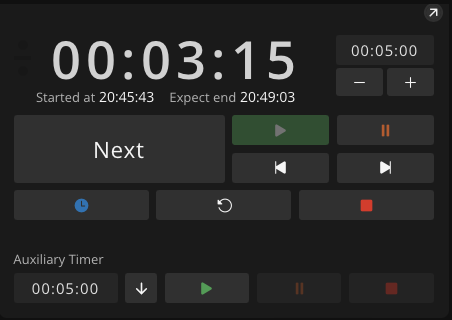
Once a cue ends, click Next.
-
Some cues auto-advance with “End of action: Play next event” — typically for songs/melodies.
-
If it’s empty (""), you must click manually.
ES:
-
Cuando termine un cue, haz clic en Next.
-
Algunos cues avanzan automáticamente con "End of action: Play next event" — típicamente en canciones o melodías.
-
Si está vacío (""), debes hacer clic manualmente.
5. 🔍 View Cue Details
Ver Detalles del Cue
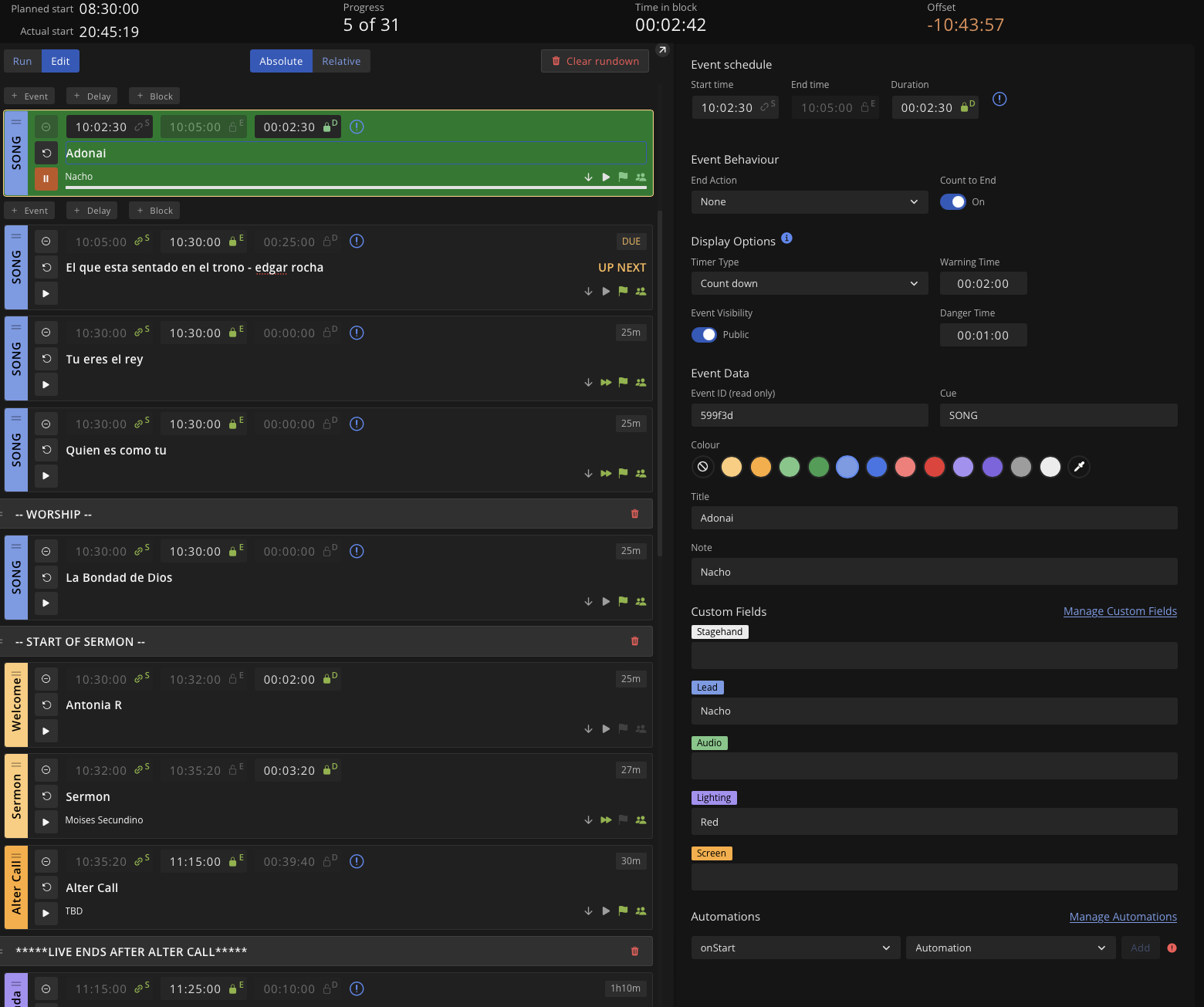
EN:
Click any cue to reveal additional info:
-
Speaker
-
Lighting
-
Audio
-
And more…
ES:
Haz clic en cualquier cue para ver más detalles:
-
Orador
-
Luces
-
Audio
-
Y más…
6. 📋 Before You Start
Antes de Comenzar
EN:
-
Double-check that the spreadsheet "RGB Production Team" matches OnTime.
-
Last-minute changes are NOT auto-synced.
-
You can manually edit cues directly in the Editor if needed.
-
See: “Setting up OnTime and editing” for help.
ES:
-
Verifica que la hoja de cálculo "RGB Production Team" coincida con OnTime.
-
Cambios de último minuto NO se sincronizan automáticamente.
-
Puedes editar cues manualmente en el Editor si es necesario.
-
Lee: "Configuración y edición de OnTime" para más ayuda.
📘 Need More Help?
¿Necesitas Más Ayuda?
Visit the official documentation:
https://docs.getontime.no/ontime
📖 Both technical and operational guides available.
No Comments